What to do when you first buy a VPS
You just bought a VPS. You have an IP address, a root password, and a completely blank machine — here's what I do first to turn it into a working dev environment.
It can feel like a lot when you first log in, but the initial setup is short. A handful of commands takes you from bare metal to something you can actually build on.
Start with a clean Debian 13
When your provider asks which operating system to install, pick Debian 13 (Trixie). Debian is famously stable and security-focused, and it ships with one of the largest package ecosystems in Linux — which makes it a dependable, low-surprise base for a server you don't want to babysit.
Most providers let you choose the OS image right when you create the VPS, so this is usually just a dropdown away.
Log in over SSH
Once the install finishes, open your terminal and connect:
ssh root@your_ip_addressSwap your_ip_address for the IP your provider gave you. You'll be prompted for a password — enter your VPS password, and you're in.
Install pi.dev
Now install pi.dev with a single command:
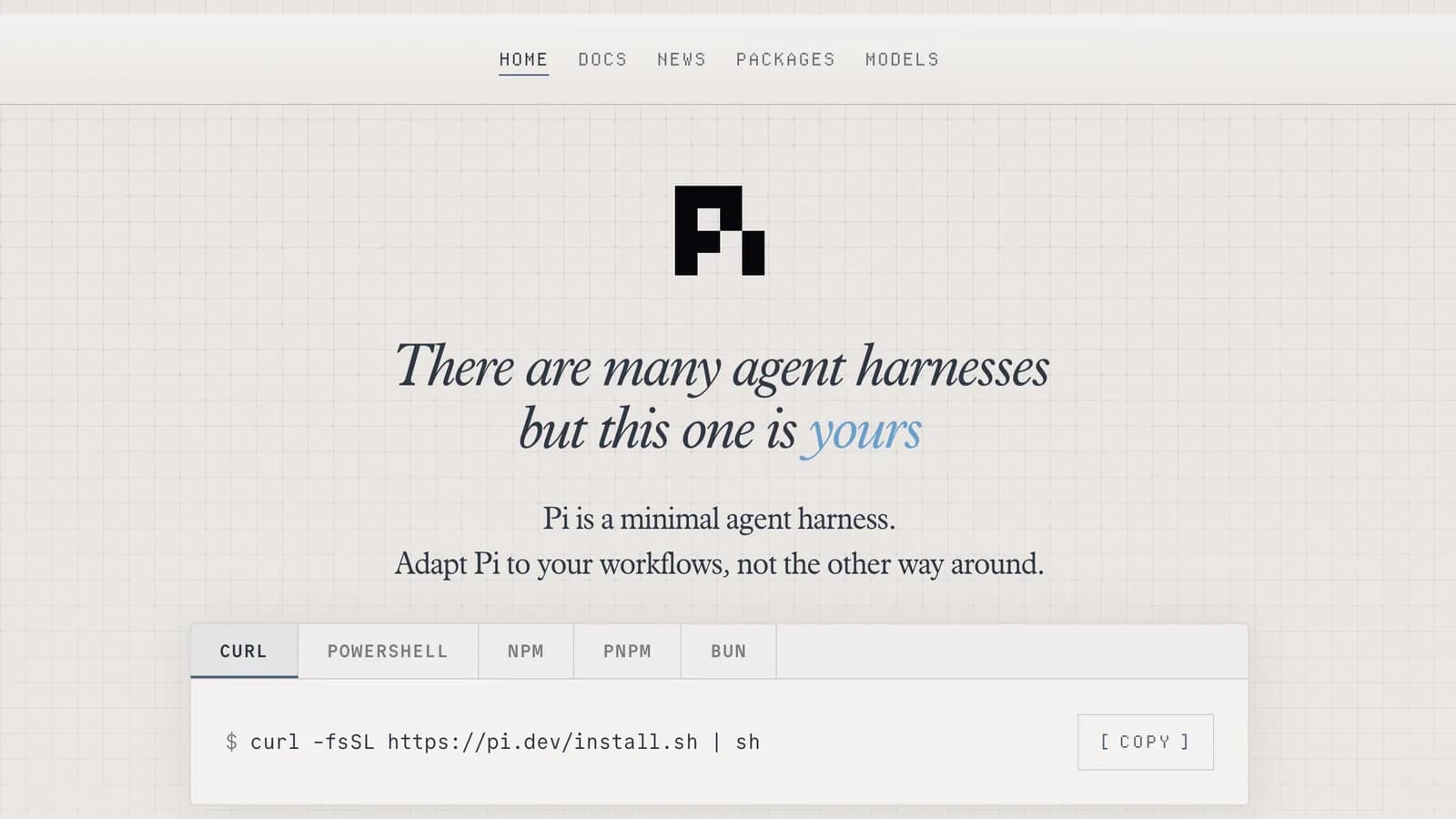
curl -fsSL https://pi.dev/install.sh | shThis does the heavy lifting for you. Along with pi.dev itself, it installs the packages you'll need — like npm and friends — so you don't have to hunt them down one by one.
Restart your session
Once the script finishes, restart your session so the newly installed tools land on your PATH. The simplest way is to log out and back in, or just run:
exec $SHELLRun pi
Finally, start it up:
piYou're inside pi now — but on a fresh install it isn't connected to a model yet. Let's fix that.
Connect a model
pi doesn't ship logged in to any provider, so the last step is pointing it at one. I like using z.ai's GLM 5.2, and wiring it up is simple.
First, leave pi by pressing Ctrl+Z. Then open pi's auth config:
nano .pi/agent/auth.jsonDrop in your provider details:
{
  "zai": {
    "type": "api_key",
    "key": "your_api_key_from_zai"
  },
  "defaultProvider": "zai",
  "defaultModel": "glm-5.2"
}
Swap your_api_key_from_zai for your actual z.ai API key. Save with Ctrl+O, then close nano with Ctrl+X.
Now start pi again:
piSay hello to make sure everything is connected — type something like Halo. If pi greets you back, you're all set: a fresh VPS running your own AI agent.
And that's the whole point. You don't memorize scripts. You don't babysit containers. You don't wrestle with proxies or lose an evening to a broken config. You just say what you need — and let the agent handle the rest.